Fendwise beta guide
Public beta, version 0.5 · 20 November 2026 · Open the checker
Welcome
Thank you for trying Fendwise, a project of Inspire Grow Flourish Society. Fendwise reads your bank transaction files and points out forgotten subscriptions and charges worth checking, explaining each one in plain English.
It takes about 10 minutes: export a transaction file from your bank, add it to the checker, and see what Fendwise finds. Fendwise is in free public beta, so it's still being improved. If something doesn't look right, please tell us: that's exactly what helps.
Your privacy
Fendwise runs in your own web browser. Your bank files never leave your computer.
- The checker page is blocked from sending anything over the internet, so it cannot send your data anywhere.
- Nothing is saved unless you choose Remember my choices. That keeps a short summary of your findings and choices in your own browser, so next month Fendwise can show what's changed. It's never sent anywhere, and Forget everything removes it.
- Your downloaded bank files are untouched; Fendwise only reads them.
- Never send us your bank files, or a screenshot showing your transactions. We only want your thoughts. If you’d like to show us something, describe it, or blank out names and amounts first.
A good habit: before adding your files, check the address bar shows fendwise.org.
Statements and transaction files
Fendwise needs a transaction file, not a bank statement, and you’ll need a computer to get one: banking apps on phones generally only offer PDF statements. The two look similar, but they’re different things, and this is the most common mix-up.
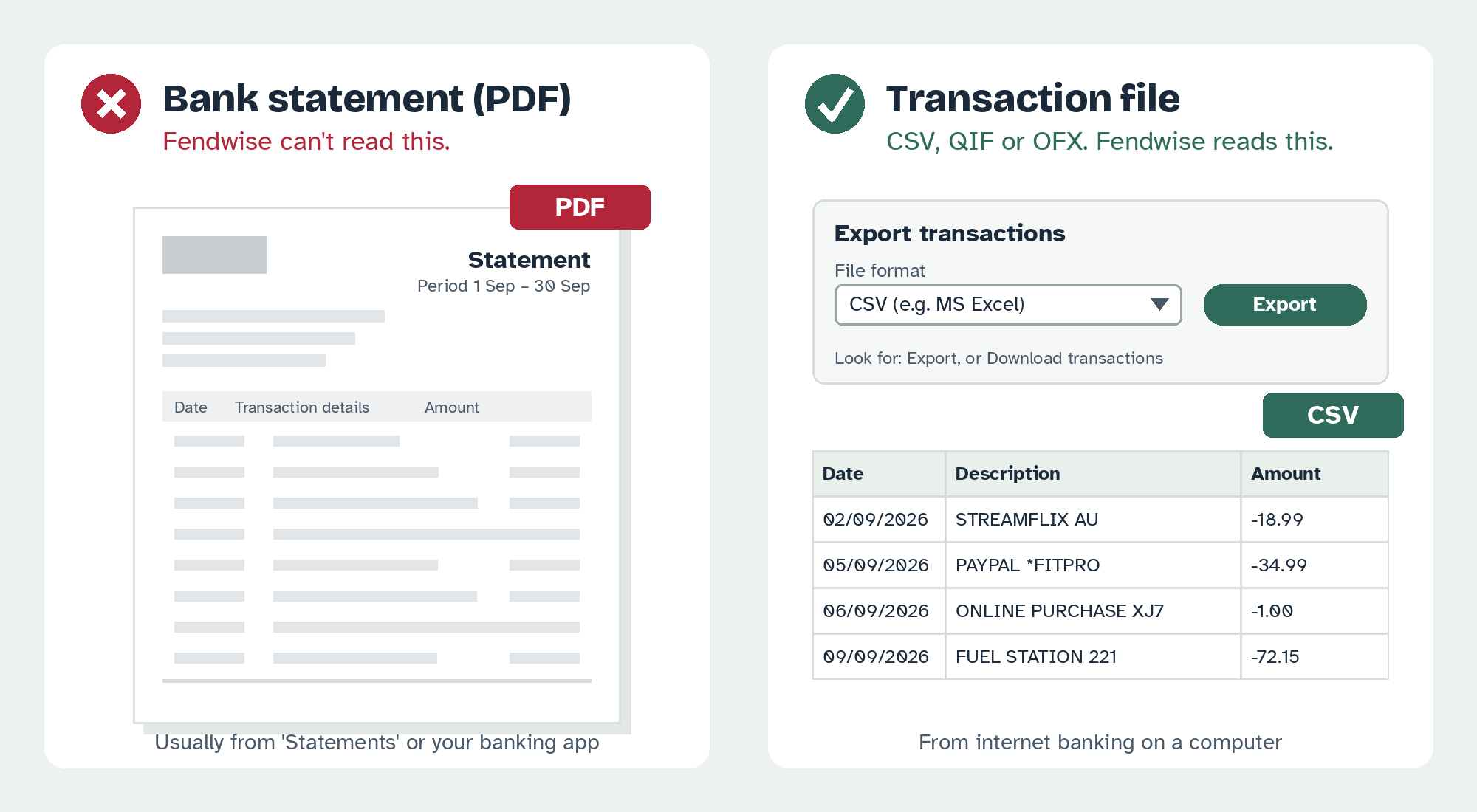
- A bank statement is a PDF document, the kind you get each month or download from your banking app. It’s made for reading, and Fendwise can’t use it.
- A transaction file is a data file in CSV, QIF or OFX format. You get it from Export or Download transactions in internet banking on a computer. It opens like a spreadsheet, one transaction per row.
Quick check: look at the end of the file name. .pdf means it’s a statement. .csv, .qif or .ofx means it’s a transaction file.
Step-by-step instructions for your bank are in the Annexure at the end of this guide.
Step by step
You’ll need a computer (Windows PC or Mac). This can’t be done on a mobile phone. Banking apps on phones generally only offer PDF statements, not transaction files.
- Export your transaction files. In your bank’s internet banking on a computer, export a transaction file (not a PDF statement) as CSV, QIF or OFX, whichever your bank offers. Choose the time period you want to check. Add more than one account, such as your everyday account and credit card, if you can.
- Open the checker. Go to fendwise.org/beta. There's nothing to sign up for.
- Add your files. Drag your transaction files onto the page, or click the box to choose them.
- Check the list of files. Each file should show the bank it was read as, the number of transactions and the dates. If one says Needs your help, click Match the columns and tell Fendwise which column is the date, description and amount. Where a file has a Currency box, check it shows the right currency: it’s usually filled in for you, and AUD is right for Australian bank accounts.
- Run the check. Click the Check button, then click any highlighted line to see why it was flagged and what you can do.
- When you’re done, close the browser tab. Nothing is kept.
Tell us what you think
Found a problem? At the bottom of the checker, click Email us about a problem. It opens an email to us with technical details about how your files were read (never your transactions, amounts or file names), so you only need to describe what happened.
We'd also love your thoughts. Short answers are perfect. Email hello@fendwise.org with any of these:
- Which bank or banks, and which file types, did you use? Did every file load correctly?
- Did Fendwise find your regular payments? Was any subscription missed, or anything shown that isn’t really a regular payment?
- Were any charges flagged that were perfectly fine? What were they, described in your own words?
- Was anything surprising or useful, such as a forgotten subscription or a price rise you hadn’t noticed?
- Were the explanations clear? Was any wording confusing?
- Would you use this once a month? What would make you more likely to?
- Where did you find the export option? Which menu or button did you use in your internet banking? This helps us write instructions for your bank.
- Anything else we should know?
Help and contact
Send feedback and questions to hello@fendwise.org.
- A transaction file won’t load: click Email us about a problem at the bottom of the checker, and tell us your bank and the file type. Don’t send the file.
- Your bank only offers PDF statements: let us know. PDF isn’t supported yet, and your answer helps us decide whether to add it.
Fendwise gives general information, not financial advice. If a charge looks wrong, contact your bank on the number on the back of your card.
About the beta
Fendwise software © 2026 Inspire Grow Flourish Society. All rights reserved. Fendwise public beta, version 0.5, is free to use under our terms of use. By sending feedback, you agree we may use it to improve Fendwise. Please share the link with anyone you think it would help.
Annexure: how to get a transaction file from your bank
Find your bank below and follow the steps. Every bank is a little different, but the idea is always the same: on a computer, open your account in internet banking, and look for Export or Download transactions, not Statements.
Before you start
- Use a computer, not a phone. Banking apps generally only offer PDF statements.
- If you’re offered a choice of file type, choose CSV. If CSV isn’t offered, choose QIF or OFX.
- Choose the time period you want to check.
- The file usually saves to your Downloads folder.
- Stuck? Call your bank and ask: “How do I export my transactions as a CSV file in internet banking?” Bank staff get this question often.
| Bank | Choose this file type | These steps are |
|---|---|---|
| CommBank | CSV | Checked by a tester |
| Wise | CSV | Checked by a tester |
| Westpac | CSV | Checked by a tester |
| NAB (including credit cards) | CSV | Checked by a tester |
| ANZ | CSV | Checked by a tester |
| BCU | CSV | Checked by a tester |
| Qantas Money credit card | CSV | Checked by a tester |
| PayPal | CSV | Checked by a tester |
| Macquarie | CSV | Checked by a tester |
| Suncorp | CSV | A general guide |
| BOQ (Bank of Queensland) | CSV | A general guide |
| ING | CSV | A general guide |
“A general guide” means the file type works with Fendwise, but the exact button names may differ slightly. If yours look different, please tell us what you clicked (question 7 above).
CommBank (NetBank)
- On a computer, log in to NetBank. The CommBank app usually only gives PDF statements.
- Click the account you want.
- Use Search or Advanced Search to choose your dates.
- Click Export.
- Choose CSV (e.g. MS Excel).
- Click Export transactions.
NetBank exports up to about two years, or 600 transactions, at a time. If the file comes back empty, choose a shorter date range.
Wise
There are two ways. Either works.
Option 1: one file for everything (simplest)
- On a computer, log in to Wise.
- Open your transactions list.
- Download your transaction history as CSV.
Option 2: statements
- On a computer, log in to Wise and create a Statement.
- Choose your dates.
- Under Your currencies, select all your currencies.
- Choose CSV.
- Click Generate.
Wise creates one file for each currency from that one request. Add all of them to Fendwise. Fendwise checks your Australian-dollar transactions and lists other currencies separately.
Westpac
- On a computer, log in to Westpac Online Banking and click the account you want. Its Account activity page opens.
- In the list of links beside the account, click Exports and reports.
- Next to Transactions, click Export CSV, QBO, QIF, OFX file.
- Under Date range, choose the dates you want to check, or click a preset range.
- Under Select accounts, check the account you want is listed. If none is selected, Westpac includes all your accounts.
- Under File format, choose CSV.
- Leave Date format as DD/MM/CCYY.
- Click Export.
Don’t use Statements, or the reports marked PDF: Fendwise can’t read those.
NAB (including NAB credit cards)
- On a computer, log in to NAB Internet Banking.
- Click Accounts in the menu on the left, then click the account or card you want. This opens its Transaction history.
- Click Filters and choose the time period you want to check. (Without this, NAB only shows the last month.)
- Click the Export button, at the top right of the list of transactions.
- Choose Export as CSV.
The file saves to your Downloads folder. Don’t choose Export as PDF: Fendwise can’t read it.
ANZ
- On a computer, log in to ANZ Internet Banking.
- Click the account you want. Its Transactions tab opens.
- Click Download, at the top right above your transaction history.
- On the Download transactions page, check the Account shown is the right one.
- Under Search period, choose the time period you want to check. Use Duration for a set period, such as the last 30 days, or Date range to pick your own dates. ANZ allows up to two years.
- Under Software package, choose Microsoft Excel (CSV).
- Leave Include Extended Transaction details unticked.
- Click Download.
Don’t use View statements: that gives PDF statements, which Fendwise can’t read. If you use ANZ Plus, please tell us whether it offers a transaction download.
BCU
- On a computer, log in to BCU internet banking and open Transaction History.
- Check the account shown at the top is the right one. If not, click the small arrow beside it to choose another.
- Next to Show, choose the time period you want to check, then click Search. For more than the last 90 days, or to pick your own dates, use Advanced Search instead.
- Scroll to the bottom of the list and click the orange download button (an arrow pointing down) at the bottom right.
- Click the CSV icon.
The QIF and OFX icons also work. Don’t choose XLS or the printer icon: Fendwise can’t read those.
Qantas Money credit card
- On a computer, log in to your Qantas Money card account.
- Under Recent transactions, click View All. The Transaction history page opens.
- Click Filters, choose the time period you want to check under Date range, then click Apply. (Without this, it shows the last 30 days.)
- Click Export.
- Choose Spreadsheet (.csv).
PayPal
- On a computer, log in to PayPal and click Activity at the top.
- Click the download button (an arrow pointing down), to the right of the search box. The Download detailed statements page opens.
- Click Custom. The Activity report page opens.
- Leave Transaction type as Balance affecting.
- Under Date range, choose the time period you want to check. PayPal allows up to 12 months in one report.
- Under Format, choose CSV.
- Click Create Report.
- Wait for PayPal’s email saying your report is ready. This can take a few minutes, sometimes longer.
- Come back to the same page, click Refresh, then click Download beside your report.
PayPal doesn’t download straight away, which surprises people: step 8 is normal. Fendwise leaves out card top-ups and currency conversions, which aren’t purchases, and if a PayPal payment also appears on your bank or card statement (as “PAYPAL *” and a name), Fendwise counts it only once.
Macquarie
- On a computer, log in to Macquarie online banking and click the account you want. Its Transactions list opens.
- To choose the time period you want to check, click Add filter and set your dates.
- Click the download button (an arrow pointing down), at the top right above the list, next to the printer icon. The Download transactions box opens.
- Click .CSV.
.QIF also works. Macquarie downloads up to 5,000 transactions at a time; for more, filter to a shorter period and download in batches. Don’t use the printer icon: Fendwise can’t read a printout or PDF.
Suncorp
- On a computer, log in to Suncorp Internet Banking.
- Choose Transaction History from the menu on the left.
- Choose the account and the time period you want to check. Suncorp allows up to 364 days in one download.
- Click Search (or Find).
- When your transactions appear, click Download Transactions, above the list.
- Choose CSV as the file format, and a day-first date format (day, then month, then year).
- Click Download.
QIF and OFX also work. Don’t choose ASCII: it’s meant for accounting software.
BOQ (Bank of Queensland)
- On a computer, log in to BOQ Internet Banking.
- Go to Transaction History (or use Advanced Search) and choose the account and the time period you want to check.
- Make sure all the transactions you want are showing on the screen. If the list runs over several pages, use Next Page or choose a larger list size: BOQ only exports what’s showing.
- Scroll to the bottom of the page and click Export All (or Export).
- Choose CSV and save the file.
QIF also works. Don’t choose DAT. If your browser asks you to click Open twice, that’s normal.
ING
- On a computer, log in to ING Online Banking (the website, not the app).
- Click the account you want, such as Orange Everyday or Savings Maximiser.
- Open its transaction history.
- Choose the start and end dates for the time period you want to check.
- Click Download or Export (or the save icon) near the list of transactions.
- Choose CSV.
If you see a Statements option, don’t use it: statements are PDFs, which Fendwise can’t read.
Your bank isn’t listed?
Follow the general idea in Before you start: computer, internet banking, your account, Export or Download transactions, CSV. Then please tell us your bank and what you clicked, so we can add it here.